MCP connector

Omni, inside Claude and ChatGPT.Your AI, now a GTA creator intern.

Connect your AI once. It learns what works for GTA hooks, titles, thumbnails and clips, searches the clip library and cuts videos on your account. It signs in as you and sees only your own account.

Server URL

https://gta6archives.com/mcp
  • Claude
  • ChatGPT
  • Claude Code
  • Codex
  • Cursor
  • OpenCode

Connect in a minute.

Paste the server URL into your assistant, sign in to GTA6 Archives, click Allow. Here is where that lives in each app.

Claude

claude.ai, Claude Desktop and the mobile apps. On Team and Enterprise plans an owner adds it first.

  1. Open Plugins, click Add and choose Add custom connector. On older versions it is under Customize, then Connectors.
  2. Type Omni as the name, paste the server URL into MCP server URL and click Continue.
    https://gta6archives.com/mcp
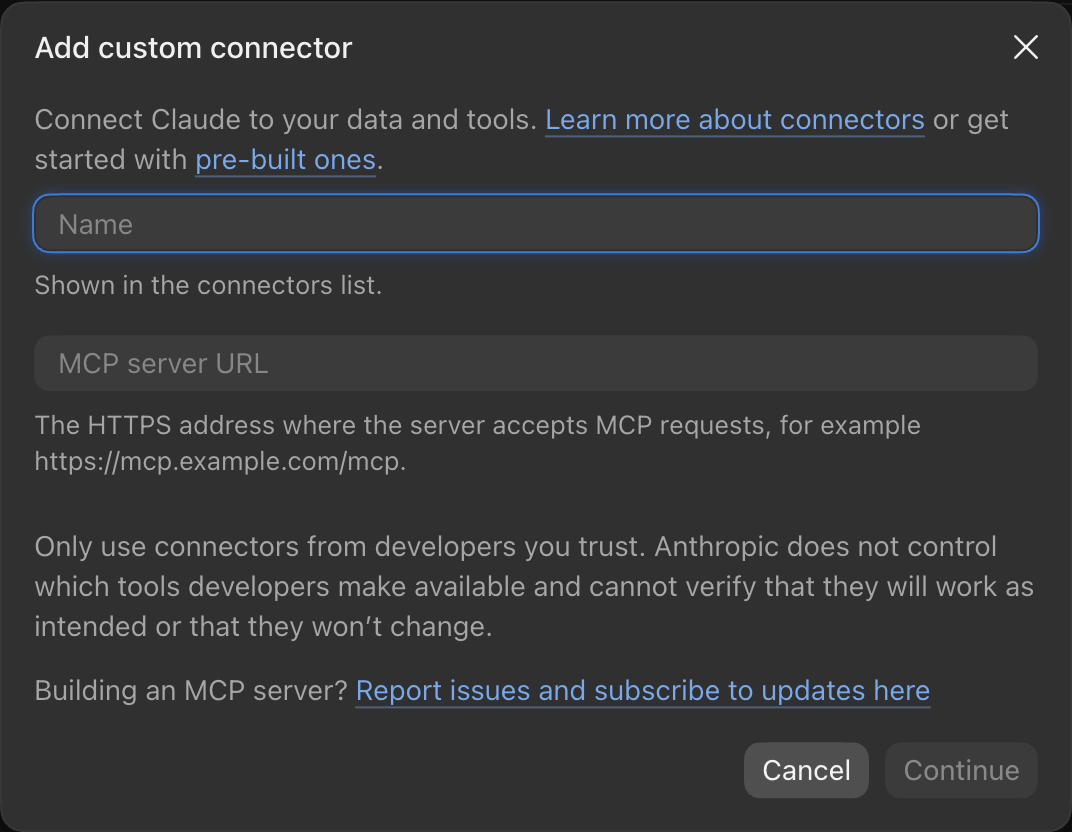
    Claude's Add custom connector dialog, with a Name field, an MCP server URL field and a Continue button
  3. When Claude asks you to connect, sign in to GTA6 Archives and choose Allow.
  4. Claude help

ChatGPT

The ChatGPT desktop app, or chatgpt.com with developer mode. On Business and Enterprise plans an admin may need to allow it.

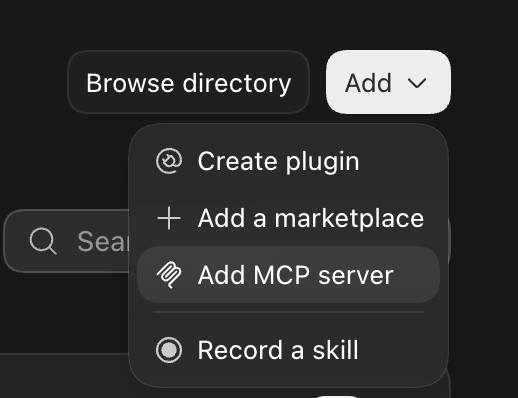
  1. In the desktop app, open Plugins, click Add and choose Add MCP server.The Add menu in ChatGPT's Plugins screen, with Add MCP server highlighted
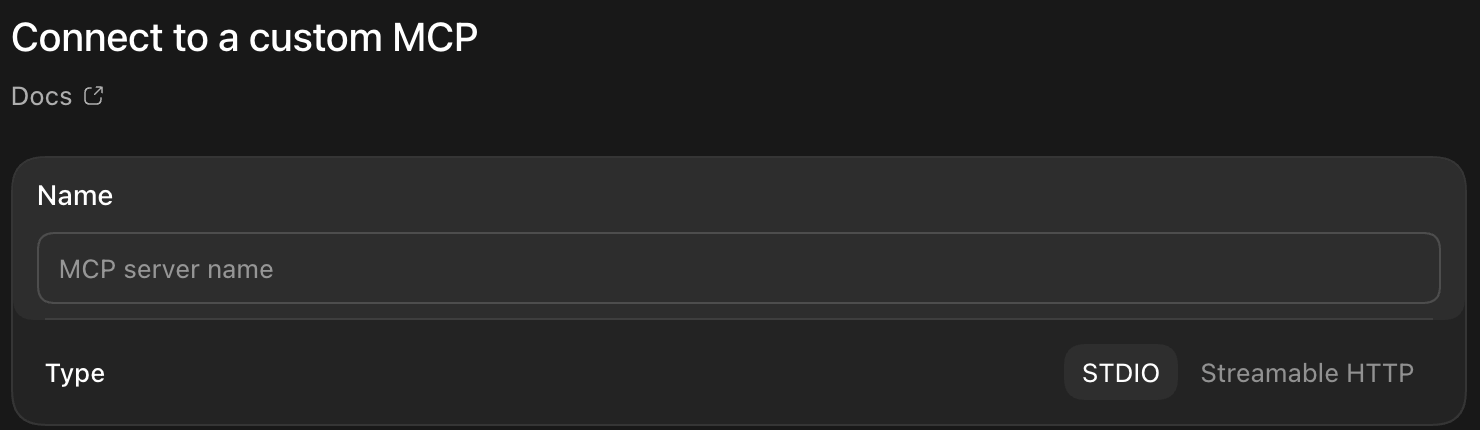
  2. Type Omni as the name, set Type to Streamable HTTP, paste the server URL and click Save.
    https://gta6archives.com/mcp
    ChatGPT's Connect to a custom MCP form, with a Name field and a Type switch between STDIO and Streamable HTTP
  3. Sign in to GTA6 Archives and choose Allow.
  4. On chatgpt.com instead: turn on Developer mode under Settings, Security and login, open Plugins, click +, name it Omni, paste the server URL and choose OAuth.
  5. ChatGPT help

Claude Code

In the terminal, for one project. Add --scope user to use it everywhere.

  1. Run this in a terminal:
    claude mcp add --transport http omni https://gta6archives.com/mcp
  2. In Claude Code, type /mcp, pick omni and choose Authenticate.
  3. Sign in to GTA6 Archives and choose Allow.
  4. Claude Code help

Codex

OpenAI's coding agent, in the terminal, the IDE extension or the desktop app.

  1. Run this in a terminal:
    codex mcp add omni --url https://gta6archives.com/mcp
  2. Then sign in:
    codex mcp login omni
  3. Sign in to GTA6 Archives and choose Allow.
  4. In the desktop app instead: Plugins, Add, Add MCP server, then the same form as under ChatGPT above.
  5. Codex help

Cursor

The editor. One click with the install link.

  1. Open the install link, or add this to ~/.cursor/mcp.json next to your other servers:
    { "mcpServers": { "omni": { "url": "https://gta6archives.com/mcp" } } }
    Add to Cursor
  2. In Cursor Settings, MCP, click Connect next to omni.
  3. Sign in to GTA6 Archives and choose Allow.
  4. Cursor help

OpenCode

Open source, in the terminal, with free models to pick from.

  1. Run this in a terminal:
    opencode mcp add omni --url https://gta6archives.com/mcp
  2. Then sign in:
    opencode mcp auth omni
  3. Sign in to GTA6 Archives and choose Allow.
  4. OpenCode help

What to ask.

Talk to it like a creator friend who has read every playbook. It picks the right tool on its own.

Hooks and titles
  • “Give me 5 hooks for a Short where my car flips off a ramp onto a police car.”
  • “Review this title before I post it: …”
Thumbnails
  • “Plan the thumbnail for "Fastest money in GTA 6 (solo)": what goes where, text and colours.”
Clipping and editing
  • “I have a 2-hour GTA recording. Plan 10 Shorts from it.”
  • “Find five night-driving clips and cut a 20-second edit.”
Getting started
  • “Omni, I want to start a faceless GTA channel this week. PS5, CapCut. Make me a plan.”
  • 264knowledge entries
  • 21hook patterns
  • 16thumbnail layouts
  • 29tested recipes and workflows

It can

  • Give hook patterns, title formulas and thumbnail layouts that fit your GTA moment
  • Plan where to cut a long recording into Shorts, with shot lengths, zooms and captions
  • Look up tested tool recipes and platform and Rockstar rules, with sources and dates
  • Search the clip library and the thumbnail prompt library
  • Plan, preview and render a cut on your account, after you confirm your footage rights
  • Review a hook, title, thumbnail or finished Short against a checklist before you post

It won’t

  • Run an AI model of its own. Your AI does the thinking; we supply the knowledge and tools
  • Post or upload anything to YouTube, TikTok or Instagram
  • Say footage is copyright-free or that a video is safe to monetize
  • See files on your computer. Footage reaches us only when you upload it
  • Keep your conversation. The chat stays with Claude or ChatGPT

You sign in through OAuth, so the assistant never sees your password and holds a short-lived token for your own account. Remove the connection any time from your assistant’s settings or the Connect page. GTA6 Archives logs which tools were called and when, never the contents of your conversation.

FAQs

Frequently asked questions

Setup, Pro, privacy and what your AI can do with it.

Yes. The server is at https://gta6archives.com/mcp and works with Claude on the web, desktop and mobile, ChatGPT on the web, Claude Code, Codex, Cursor, OpenCode and any other MCP client that supports OAuth sign-in. You sign in with your GTA6 Archives account.
Looking for a guide?Explore resources

Not on Pro yet?

The connector comes with Pro, along with every lesson, playbook, the clip library and the Studio.